
Managing Discount Codes
This guide explains how to create and manage discount codes (promo codes) that customers can enter at checkout on your website's shop.
Prerequisites
- Your website has a shop with Stripe connected — see Connecting Stripe
- You're an admin of the website (the Discount codes page only appears for website admins)
Accessing Discount Codes
- Log in to the platform
- Go to your website's dashboard
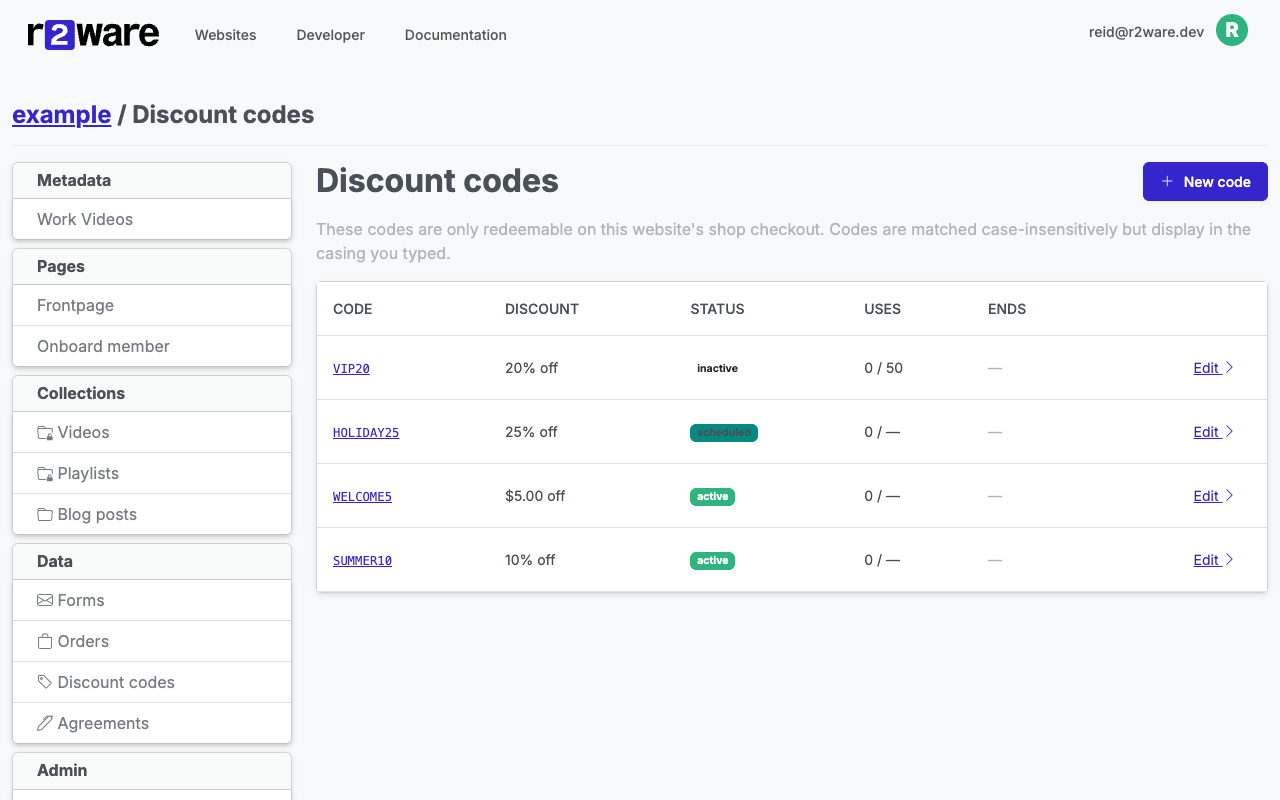
- Click Discount codes in the left navigation (under the Data section, with a tag icon)
You'll see a list of your codes, or a prompt to create your first one.
Creating a Code
- Click the blue New code button
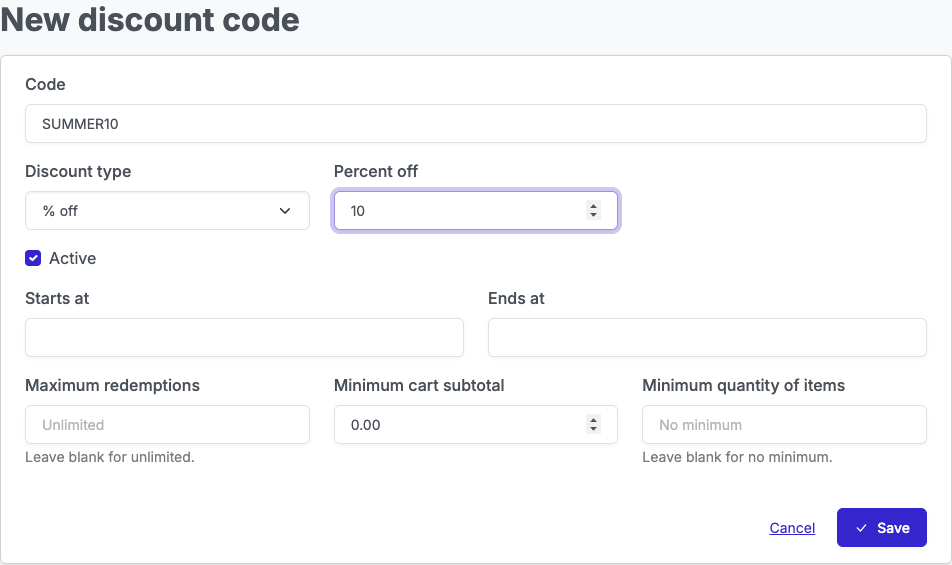
- Fill in the form:
| Field | What it does |
|---|---|
| Code | What the customer types at checkout (e.g. SUMMER10). Letters, numbers, hyphens, and underscores only. |
| Discount type | % off takes a percentage off the cart subtotal. $ off takes a fixed dollar amount off. |
| Percent off / Dollars off | The size of the discount (e.g. 10 for 10% off, or 5.00 for $5 off). |
| Active | Uncheck to turn the code off without deleting it. |
| Starts at / Ends at | Optional schedule. Leave blank for a code that works immediately and never expires. |
| Maximum redemptions | Optional limit on total uses across all customers. Leave blank for unlimited. |
| Minimum cart subtotal | Optional minimum order size (e.g. 25.00 means the cart must be at least $25 before the code applies). |
| Minimum quantity of items | Optional minimum number of items in the cart. Leave blank for no minimum. |
- Click Save
The code works right away (if Active and within its schedule) — there's nothing to rebuild or publish.
About capitalization: customers can type the code in any casing — SAVE10 and save10 both work. The list displays the code exactly as you typed it.
What Customers See
On your website's cart page, customers will find a Promo code box:
- The customer enters the code and clicks Apply
- The cart shows a discount line with the code and the amount off, plus the new total
- The final total is charged on the secure checkout page
If the code can't be used (expired, not yet active, fully redeemed, or the order is below the minimum), the customer sees a short message under the box explaining why.
Customers can apply one code per order — codes can't be combined.
The Code List
Each code in the list shows:
- Code — Click to edit
- Discount — e.g. "10% off" or "$5.00 off"
- Status — See below
- Uses — How many times it's been redeemed, out of the maximum (— means unlimited)
- Ends — The end date, if scheduled
Code Statuses
| Status | Meaning |
|---|---|
| active (green) | Customers can use the code now |
| scheduled (blue) | The start date hasn't arrived yet |
| inactive (gray) | You unchecked Active |
| expired (gray) | The end date has passed |
| exhausted (yellow) | It reached its maximum redemptions |
Seeing Redemptions
- The Uses column on the code list shows the redemption count at a glance
- Each order that used a code shows a Discount line with the code and amount in its order details — see Viewing Orders
Editing and Deleting
To edit a code, click it in the list, make your changes, and click Save. Changes take effect immediately — a customer checking out after your change gets the updated discount.
To delete a code, open it for editing and click the red Delete button. You'll see a confirmation page showing how many times the code was redeemed before you confirm. Past orders keep their discount records even after the code is deleted.
If you want to pause a code but keep its redemption history, uncheck Active instead of deleting it.
Common Questions
A customer says their code doesn't work
Check the code's status in the list:
- inactive / expired / exhausted — the code can't be used; edit it to reactivate, extend the end date, or raise the maximum redemptions
- scheduled — the start date hasn't arrived yet
- active — check the Minimum cart subtotal and Minimum quantity of items; the customer's order may be below one of them. The error message tells the customer the minimum.
Can a code make an order free?
No. If a code would cover the full amount, checkout is rejected and the customer is asked to contact you. Discounts can reduce an order's total, but every order must charge at least something.
Why does Uses show more than the maximum?
In rare cases, two customers checking out at the same moment can both redeem the last available use. Both orders are valid and both customers were charged. If this happens often, your maximum may be set too tight for the demand.
Does a refund give the use back?
No. Refunding an order doesn't reduce the code's redemption count — the code was genuinely used, even if the payment was later reversed.
Does the discount apply to shipping?
No. The discount applies to the item subtotal only. Any shipping fee is added unchanged at checkout.